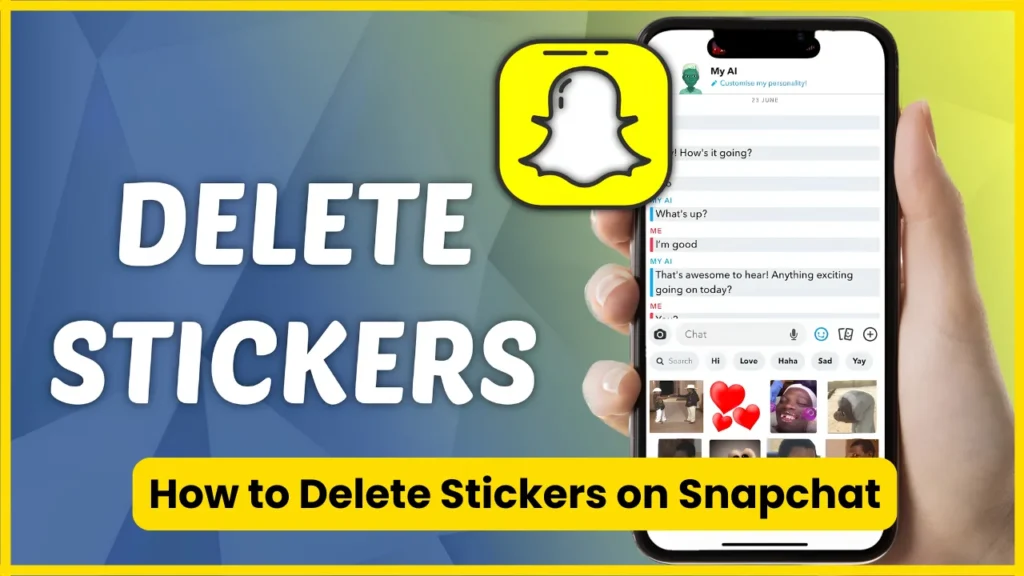
Snapchat stickers are useful for adding personality to Snaps and chats, but they can quickly clutter your sticker drawer. If you have saved stickers you no longer use, created a custom sticker by mistake, or simply want to remove stickers from a Snap, the process depends on where the sticker came from and what you are trying to delete.
The good news is that removing a sticker from a photo or video is different from deleting a saved or custom sticker permanently. This guide explains each situation, including how to delete stickers from Snaps, remove saved stickers, delete custom stickers, and deal with stickers you’ve already sent in a chat.
Quick Answer: How Do You Delete Stickers on Snapchat?
If you want to delete a sticker from a Snap before sending it, press and hold the sticker, then drag it toward the trash/bin icon that appears.
If you want to remove a saved or custom sticker, open Snapchat’s sticker tools, locate the sticker, press and hold it, and look for the available delete or remove option.
The exact options can vary depending on the Snapchat version, device, and type of sticker.
How to Delete a Sticker From a Snap?
This is the most common reason people search for “how to delete stickers on Snapchat.”
If you placed a sticker on a photo or video and changed your mind, you do not need to retake the Snap.
Steps to remove a sticker before sending
- Open Snapchat.
- Take a photo or record a video.
- Tap the sticker icon on the editing screen.
- Add a sticker to your Snap.
- Press and hold the sticker you want to remove.
- Drag it toward the trash/bin icon.
- Release it when the sticker reaches the trash area.
The sticker should disappear from the Snap.
Important distinction
Deleting the sticker this way does not necessarily delete the sticker from your saved stickers or sticker collection.
It only removes that particular sticker placement from the current Snap.
Also Read: How to Unpin Someone on Snapchat
How to Delete a Custom Sticker on Snapchat?
Snapchat allows users to create stickers from objects or parts of images. These custom stickers can remain available in your sticker collection, which is why some users later want to remove them.
To remove a custom sticker
- Open Snapchat and go to the camera screen.
- Take or select a Snap.
- Open the sticker tools.
- Find your custom sticker collection.
- Press and hold the custom sticker.
- If Snapchat displays a delete/remove option or trash icon, use it.
- Confirm the removal if Snapchat asks you to.
If you do not see a delete option, check that you are pressing and holding the sticker itself rather than simply tapping it.
Snapchat changes parts of its interface regularly, so the location and appearance of sticker-management controls can differ between app versions.
How to Delete Saved Stickers on Snapchat?
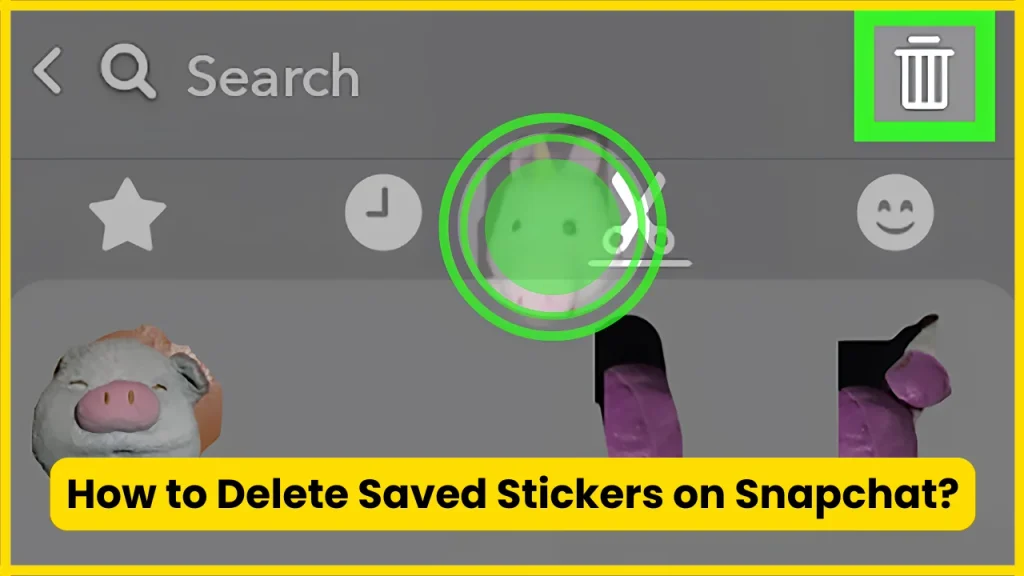
Saved stickers are different from stickers temporarily placed on a Snap.
If you’ve accumulated stickers you no longer want in your sticker drawer, open the relevant sticker section and look for the management option associated with the sticker.
A common approach is:
Open Snapchat → Create or edit a Snap → Sticker icon → Find the saved/custom sticker → Press and hold → Delete or remove
If the sticker does not provide a removal option, it may be a Snapchat-provided sticker rather than a user-created sticker.
Can you delete every Snapchat sticker?
No.
You generally cannot remove Snapchat’s entire built-in sticker library simply because you do not use certain stickers. Snapchat controls its native sticker sets.
What you can usually manage are stickers that you have created, saved, or added yourself, depending on the feature and current version of the app.
Also Read: Snapchat Moons
How to Delete a Sticker From a Snapchat Chat?
This situation is slightly different.
If someone sends a sticker in a Snapchat conversation, you may be able to manage or delete the message or chat content according to Snapchat’s current chat controls, but that does not necessarily mean you are deleting the sticker from Snapchat’s sticker library.
In other words:
| What you want to remove | What happens |
| Sticker placed on your Snap | Removes it from that Snap |
| Custom sticker you created | May be removable from your custom sticker collection |
| Saved sticker | May be removable from your saved collection |
| Snapchat’s built-in sticker | Generally cannot be individually deleted |
| Sticker someone sent in chat | Chat/message controls apply |
| Sticker already sent to someone | Removing it depends on Snapchat’s chat controls and timing |
This distinction prevents a common mistake: deleting a sticker from a photo does not mean deleting the sticker from Snapchat.
How to Remove a Sticker From a Photo Without Deleting the Photo?
Suppose you are editing a Snap and accidentally place a sticker over someone’s face.
You can simply remove that sticker from the current image.
Try this
Press and hold the sticker → drag it toward the trash icon → release.
Your underlying photo remains intact.
This is particularly useful when you’re editing a Snap with several elements, such as:
- Text
- GIFs
- Bitmoji
- Emojis
- Stickers
- Filters
- Drawings
You only need to remove the unwanted element instead of starting the Snap again.
What Happens When You Delete a Sticker?
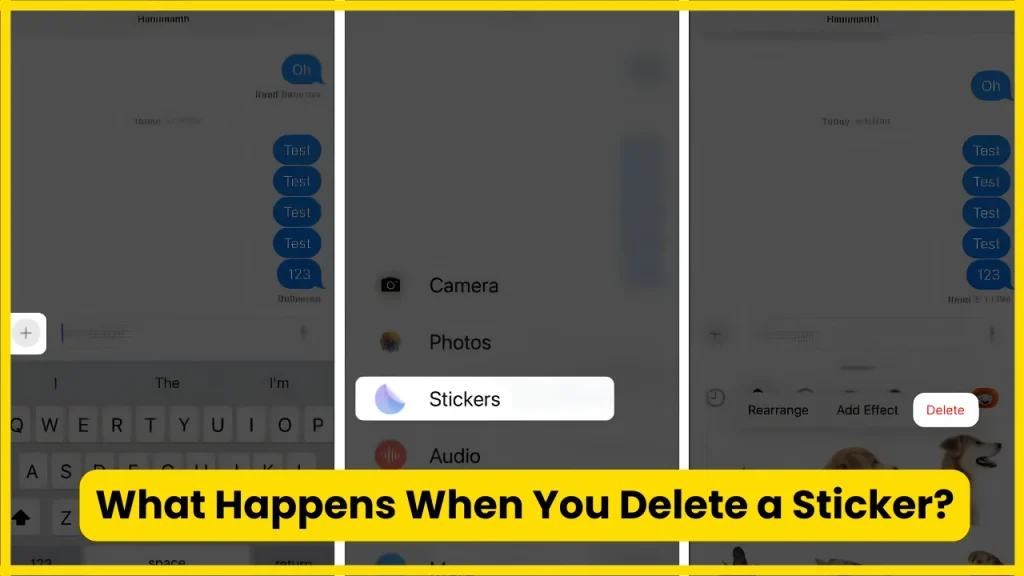
It depends on the type of deletion.
If you remove a sticker while editing a Snap, the sticker disappears from that Snap but remains available elsewhere.
If you delete a custom sticker from its collection, it can stop appearing among your personal stickers.
If you’re trying to remove a sticker from a conversation, you’re dealing with Snapchat’s chat deletion system, not its sticker-management system.
That’s why the same “delete sticker” search can lead to several different solutions.
Also Read: What Does the Green Dot Mean on Snapchat?
Delete vs Remove: What’s the Difference?
The words “delete” and “remove” are often used interchangeably, but they can describe different actions in Snapchat.
| Action | Meaning |
| Remove from Snap | Takes the sticker off the current photo/video |
| Delete custom sticker | Removes your created sticker from its collection, when supported |
| Delete chat message | Deals with content sent through a conversation |
| Remove saved item | Removes an item from your saved collection |
| Uninstall Snapchat | Removes the app, not individual stickers |
If your goal is simply to get a sticker off a picture, do not delete Snapchat or clear the app’s data. You only need to remove the sticker from the editing canvas.
Why Can’t I Delete a Sticker on Snapchat?
If you’re pressing and holding a sticker but nothing happens, there are several possible explanations.
1. It’s a built-in Snapchat sticker
Snapchat’s own sticker library isn’t the same as your personal custom collection. You may not have an option to permanently delete individual native stickers.
2. You’re trying to remove it from the wrong screen
Sticker editing controls are available while you’re editing a Snap. A sticker already sent in a chat follows different controls.
3. Your Snapchat app is outdated
An older version may have a different sticker interface or different controls.
Check your device’s app store for an available Snapchat update.
4. You’re tapping instead of pressing and holding
Some sticker-management actions require a long press rather than a normal tap.
5. The feature has changed
Snapchat frequently experiments with or changes its interface. Two accounts can sometimes see slightly different controls depending on app version, operating system, account configuration, or feature rollout.
Also Read: How to Half Swipe on Snapchat
How to Delete a Sticker You Accidentally Created?
This happens often with Snapchat’s custom sticker tools.
You create a sticker from part of an image, save it, and later realize you don’t need it.
The best approach is to open the sticker section where your custom creations are stored and long-press the unwanted sticker.
If Snapchat presents a trash, delete, or remove control, select it.
If no such control appears, don’t assume the sticker is permanently stuck. The available controls may depend on the current Snapchat interface and the specific sticker feature used to create it.
Can You Delete Bitmoji Stickers on Snapchat?
Bitmoji stickers are closely connected with Bitmoji and Snapchat’s broader personalization system.
You generally cannot treat every Bitmoji sticker like a custom sticker you personally created.
For example, removing one Bitmoji sticker from a Snap only removes that instance from the Snap. It does not delete the corresponding Bitmoji artwork from Snapchat or your Bitmoji account.
If your goal is to change the appearance or availability of Bitmoji content, that is a separate issue from deleting a sticker from a Snap.
Can You Delete Snapchat Stickers After Sending Them?
This depends on where the sticker was sent and which chat controls are available.
A sticker that has already been sent in a conversation is no longer part of the editing canvas. You cannot simply drag it to the trash like you can while editing a Snap.
Instead, you need to use the available Snapchat chat controls for that message or conversation.
Keep in mind that removing a chat message is not the same thing as permanently deleting a sticker from your personal sticker collection.
Also Read: What Does NRS Mean on Snapchat?
What If the Sticker Is Covering Something in My Snap?
If you’re trying to remove a sticker because it is covering part of a photo, the solution is simple:
- Stay on the Snap editing screen.
- Press and hold the sticker.
- Drag it toward the trash icon.
- Release it.
- Continue editing the Snap.
There is no need to delete the entire photo.
A useful editing tip
If you’ve added several stickers, text elements, or drawings, remove them one at a time. This lets you keep the rest of your edits instead of rebuilding the Snap.
Snapchat Sticker Problems and Quick Fixes
| Problem | What to try |
| Sticker won’t move | Press and hold it |
| Trash icon doesn’t appear | Make sure you’re editing the Snap |
| Custom sticker won’t delete | Check the custom sticker section and long-press it |
| Built-in sticker cannot be deleted | This may be normal |
| Sticker disappeared unexpectedly | Check whether it was removed from the current Snap only |
| Snapchat controls look different | Update the app and check the current interface |
| Chat sticker won’t disappear | Use the chat/message controls instead |
| Sticker feature is missing | Update Snapchat and restart the app |
Also Read: What Do the Snapchat Planets Mean?
Do You Need to Clear Snapchat Cache to Delete Stickers?
Usually, no.
Clearing Snapchat’s cache is not the normal method for deleting a sticker.
Cache clearing can help with certain technical problems, such as temporary loading issues, but it should not be your first step when you simply want to remove a sticker from a Snap.
If your only problem is an unwanted sticker on an image, use the trash/remove gesture in the editing interface.
Does Deleting Snapchat Delete Your Stickers?
Uninstalling Snapchat is not a reliable method for managing individual stickers.
Deleting the app from your phone is an account/app-level action, while sticker management happens within Snapchat’s editing and personalization features.
If you’re trying to clean up your sticker collection, deal with the specific sticker rather than removing the entire application.
A Simple Way to Remember the Process
Think of Snapchat stickers in three categories:
Sticker on a Snap:
Drag it to the trash.
Custom or saved sticker:
Open your personal sticker collection and look for the delete/remove control.
Sticker in a chat:
Use Snapchat’s chat/message controls.
That distinction solves most “how to delete stickers on Snapchat” problems.
Snapchat Sticker Deletion: Quick Comparison
| Situation | Best method |
| Remove sticker before sending Snap | Drag sticker to trash |
| Remove emoji from Snap | Press and drag to trash |
| Remove custom-created sticker | Long-press in its sticker collection |
| Remove a Snapchat-built-in sticker | Usually not individually possible |
| Remove sticker from chat | Use message/chat controls |
| Remove Bitmoji sticker from Snap | Drag the sticker to trash |
| Fix missing sticker controls | Update/restart Snapchat |
| Clear temporary Snapchat problems | Consider clearing cache |
Also Read: Snapchat Planets Numbered
Common Mistakes to Avoid
Don’t delete the entire Snap
If only one sticker is wrong, remove that sticker instead of discarding your photo or video.
Don’t confuse deleting with unsaving
Removing an element from an edited Snap doesn’t necessarily remove the original sticker from your saved collection.
Don’t assume every sticker is removable
Snapchat’s native sticker library is different from stickers you create yourself.
Don’t use drastic troubleshooting first
Restarting the app or clearing cache may help technical problems, but they aren’t substitutes for the normal sticker-removal controls.
Frequently Asked Questions
How do I delete stickers on Snapchat?
While editing a Snap, press and hold the sticker and drag it toward the trash/bin icon. If you want to delete a custom or saved sticker from your collection, open the relevant sticker section and look for the delete or remove control.
How do I delete a sticker I made on Snapchat?
Open your custom sticker collection, find the sticker you created, and press and hold it. If Snapchat provides a delete or remove option, select it.
Can I delete Snapchat’s default stickers?
Generally, you cannot individually delete Snapchat’s built-in sticker library. Those stickers are provided by Snapchat rather than being personal stickers you’ve created.
How do I remove a sticker from a picture on Snapchat?
Open the Snap in editing mode, press and hold the sticker, and drag it to the trash icon. This removes the sticker without deleting the underlying picture.
Can I remove a sticker after sending a Snap?
You cannot remove a sent sticker using the editing-screen trash gesture. Once content has been sent, the available Snapchat chat or message controls apply instead.
Why can’t I delete my Snapchat sticker?
You may be dealing with a built-in Snapchat sticker rather than a custom sticker. Alternatively, your version of Snapchat may use different controls. Try long-pressing the sticker in the appropriate collection and make sure the app is updated.
Can I delete Bitmoji stickers?
You can remove a Bitmoji sticker from the Snap you’re currently editing by dragging it to the trash. That does not mean the Bitmoji artwork itself has been deleted from Snapchat or Bitmoji.
Does clearing Snapchat cache delete stickers?
Clearing cache is not normally required to delete stickers. It is primarily a troubleshooting step for temporary app problems.
How do I remove all stickers from a Snapchat photo?
If the stickers are on an unsent Snap, remove each one individually by dragging it to the trash. There is generally no need to discard the entire photo.
Also Read: Best Friend List Snapchat Planets
Conclusion
Deleting stickers on Snapchat is usually quick once you identify what you’re trying to remove. A sticker placed on an unsent Snap can normally be dragged to the trash, while custom and saved stickers require their own collection controls. Built-in Snapchat and Bitmoji stickers are different. Understanding these distinctions helps you remove unwanted stickers without deleting your photo, chat, or account.

Tasha Harshman is a versatile writer who explores a range of topics with a special focus on entertainment. She enjoys sharing clear, engaging insights about movies, celebrities, trends, and pop culture.