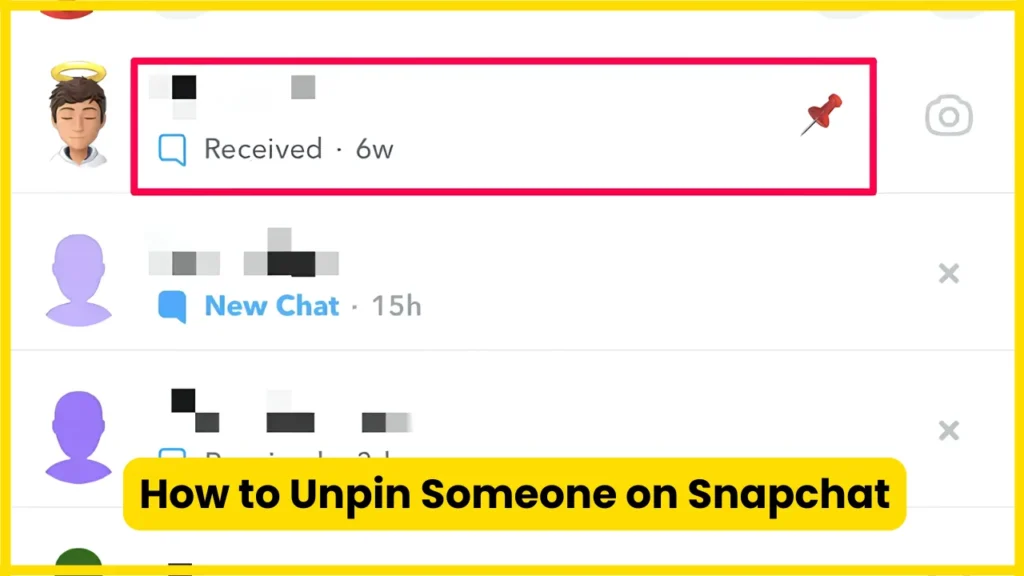
If you pinned someone on Snapchat and now want their chat back in its normal position, you can remove the pin without deleting the conversation or removing the person as a friend. On supported iOS versions of Snapchat, the process takes only a few taps: open your Chat screen, press and hold the pinned conversation, open Chat Settings, and select Unpin Conversation.
One important detail is easy to miss: unpinning a conversation is different from clearing a chat, deleting messages, unfriending someone, or blocking them. Unpinning only changes where the conversation appears in your Chat feed. It does not end the friendship or erase your chat history.
How to Unpin Someone on Snapchat?
If you want the quickest answer, follow these steps:
- Open Snapchat.
- From the Camera screen, swipe right to open the Chat screen.
- Find the person or Group you have pinned at the top.
- Press and hold their conversation.
- Tap Chat Settings.
- Select Unpin Conversation.
The conversation should then stop appearing as a pinned chat at the top of your Chat feed. Snapchat’s official support documentation confirms this exact process.
Quick answer
To unpin someone on Snapchat:
Chat screen → press and hold the pinned conversation → Chat Settings → Unpin Conversation.
You do not need to delete the conversation or remove the person from your friends list.
What Happens When You Unpin Someone on Snapchat?
Unpinning is mainly an organizational change.
When you unpin a person:
- Their conversation is removed from the pinned position.
- The chat remains in your Chat feed.
- Your friendship with that person is not removed.
- Saved messages are not deleted.
- The conversation is not automatically cleared.
- You can still send and receive Snaps and Chats normally.
- You can pin the conversation again later if the feature is available to you.
Snapchat says pinned conversations remain at the top even when you receive new Chats or Snaps from other friends or Groups. Removing the pin simply removes that special top position.
Does Snapchat notify someone when you unpin them?
No notification is sent simply because you pin or unpin their conversation.
Snapchat specifically states that users are not notified when you pin a conversation with them.
So if you unpin a friend because you want to reorganize your Chat feed, they should not receive an alert saying that you removed their pin.
Also Read: Snapchat Moons
Can You Unpin a Group Chat?
Yes. Snapchat’s instructions apply to a pinned friend or Group.
The process is essentially the same:
Chat screen → press and hold the pinned Group → Chat Settings → Unpin Conversation.
This is useful if you have pinned several active group conversations and want to make your Chat screen less crowded.
Snapchat currently allows up to three pinned conversations at the top of the Chat screen.
What If You Do Not See “Unpin Conversation”?
This is where many Snapchat users get confused.
If the Unpin Conversation option is missing, check these possibilities.
1. The conversation may not actually be pinned
If the person is simply appearing near the top of your Chat screen because you recently interacted with them, that does not necessarily mean the conversation is pinned.
A pinned conversation has a specific pinned status and remains at the top of the Chat screen.
2. You may be using Android
Snapchat’s current official support page says that conversation pinning is only available on iOS for now.
That means Android users may not see the same pinning and unpinning controls described in Snapchat’s iOS instructions.
If you are following an older tutorial that shows an Android pinning option, the interface may no longer match your version of Snapchat.
3. Your Snapchat app may need updating
App interfaces can change between versions. If your menus look different from the current Snapchat instructions, update Snapchat through your device’s app store and check the conversation again.
4. You may be dealing with My AI instead of a friend
Snapchat has separate controls for My AI, so its menu can look different from an ordinary friend conversation.
If the item at the top of your Chat feed says My AI, use the My AI-specific instructions below.
Also Read: What Does the Green Dot Mean on Snapchat?
How to Unpin My AI on Snapchat?
My AI is handled slightly differently from an ordinary friend conversation.
According to Snapchat’s current support documentation:
- Swipe right from the Camera screen to open Chat.
- Press and hold My AI.
- Tap Chat and Notification Settings.
- Tap Unpin Conversation.
That removes the pin without requiring you to delete the entire My AI conversation.
Unpinning My AI vs clearing My AI
These are two different actions.
| Action | What it does |
| Unpin Conversation | Removes My AI from the pinned position |
| Clear from Chat Feed | Removes the My AI conversation from your Chat feed |
| Delete My AI data | Deletes relevant My AI data through Snapchat’s data controls |
Snapchat specifically warns that clearing My AI from the Chat feed does not delete data you previously shared with My AI.
So if your goal is simply to stop seeing My AI at the top, choose Unpin Conversation, not Clear from Chat Feed.
How to Unpin Someone Without Deleting the Chat?
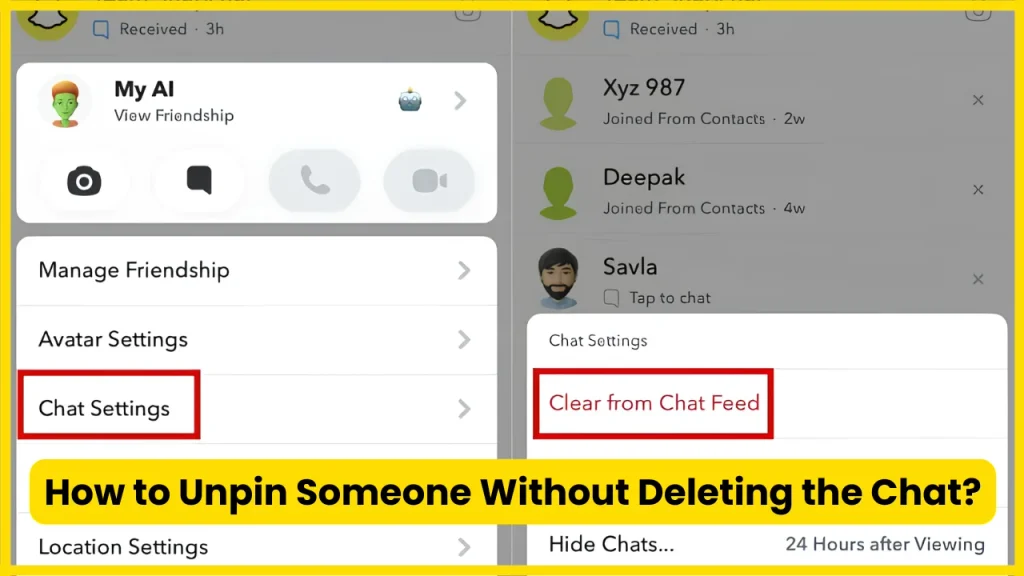
You do not need to clear the conversation to remove a pin.
This distinction matters because Snapchat has a separate feature for clearing conversations. On iOS, clearing a conversation is handled through Settings > My Privacy & Data > Clear Data > Clear Conversations, while Android has its own Clear Conversation option. Snapchat says clearing a conversation does not delete saved or sent content.
If your only goal is to remove the person from the pinned section, use:
Chat Settings → Unpin Conversation
Do not choose a clearing option unless you actually want to remove the conversation from your Chat feed.
Also Read: How to Half Swipe on Snapchat
Unpinning vs Unfriending vs Blocking on Snapchat
These actions are often confused because they can all change how someone appears in Snapchat.
| Action | Removes pin? | Removes friend? | Removes chat? | Blocks communication? |
| Unpin Conversation | Yes | No | No | No |
| Clear Conversation | Not necessarily | No | Removes it from Chat feed | No |
| Unfriend | Effectively removes the friendship | Yes | Can affect access | No |
| Block | Yes | Yes | Restricts interaction | Yes |
The key takeaway is simple: unpinning is not a relationship action. It is a Chat feed organization feature.
If you still want to talk to the person but do not want their conversation permanently sitting at the top, unpinning is the appropriate option.
Why Does Snapchat Keep Someone at the Top After I Unpin Them?
A conversation can appear high in your Chat feed for reasons other than being pinned.
For example, recent conversations and your Snapchat activity can affect the order in which chats appear. Snapchat also has a separate Best Friends system based on the people you send 1:1 Snaps and Chats to most frequently and recently.
So if you unpin someone and they remain near the top, that does not necessarily mean Snapchat ignored the unpin command.
There is an important difference:
Pinned position: manually kept at the top.
Normal Chat position: determined by Snapchat’s chat ordering and activity.
Unpinning removes the manual pin. It does not guarantee that the person will immediately move to the bottom of your Chat feed.
Also Read: What Does NRS Mean on Snapchat?
Does Unpinning Delete Snapchat Messages?
No.
Unpinning a conversation does not delete the messages in that conversation.
Snapchat has separate rules for automatically deleting Chats and Snaps. For ordinary one-to-one and Group conversations, Snapchat says Chats are automatically deleted by default 24 hours after everyone has viewed them or 31 days after they were sent, whichever comes first, although different retention settings can be selected.
That process is unrelated to the pin itself.
If you want to delete a specific message, that is a separate action.
Does Unpinning Someone Remove Them From Your Best Friends?
No.
A pinned conversation and Snapchat’s Best Friends system serve different purposes.
Pinning is a way to keep a conversation at the top of your Chat screen. Best Friends are determined from your Snapchat interactions and can change over time.
Therefore, unpinning someone does not mean you have removed them from your Best Friends list.
Likewise, someone appearing in Best Friends does not mean their conversation must be pinned.
Can You Pin the Person Again Later?
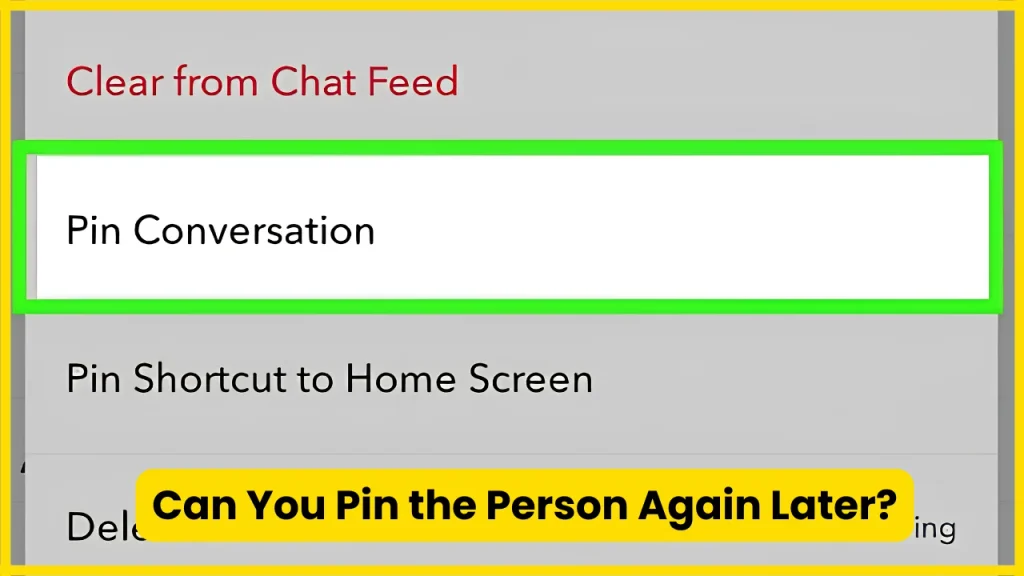
Yes, if the pinning feature is available on your account and device.
To pin a conversation again:
- Open the Chat screen.
- Press and hold the friend’s conversation.
- Tap Chat Settings.
- Choose Pin Conversation.
Snapchat currently allows up to three pinned conversations.
This can be useful if you temporarily unpinned someone but later decide you want their conversation easily accessible again.
Also Read: What Do the Snapchat Planets Mean?
A Simple Example
Imagine you pinned your best friend because you message them throughout the day. A few weeks later, you decide that your Chat screen feels cluttered and want to remove the pin.
You do not need to:
- Delete the conversation
- Remove your friend
- Block them
- Delete saved messages
- Change your privacy settings
Instead, simply open the conversation’s Chat Settings and select Unpin Conversation.
The chat remains available, but it no longer receives the special pinned position.
What Is the Difference Between “Unpin Conversation” and “Clear from Chat Feed”?
The wording is similar, but the result is different.
Unpin Conversation means:
Keep the conversation, but remove its pinned position.
Clear from Chat Feed means:
Remove the conversation from the visible Chat feed.
Snapchat provides these as separate controls, particularly for My AI.
If you are unsure which option to choose, ask yourself one question:
Do I still want the conversation available in my Chat feed?
If yes, unpin it.
If you want it removed from the feed, look for the appropriate Clear from Chat Feed or Clear Conversation option.
Also Read: Snapchat Planets Numbered
What If Snapchat Still Shows the Person at the Top?
Try these practical checks:
- Confirm that you selected Unpin Conversation.
- Return to the Chat screen and check whether the pin indicator or pinned position has disappeared.
- Close and reopen Snapchat if the interface has not refreshed.
- Make sure Snapchat is updated.
- Check whether the person is simply near the top because of recent activity.
- If the option is unavailable, remember that Snapchat’s current documentation limits conversation pinning to iOS.
If a feature appears broken after an update, Snapchat recommends reporting bugs through Settings > Support & Safety > Bugs and Suggestions > Report a Bug.
Common Mistakes When Trying to Unpin Someone
Mistake 1: Clearing the conversation
If you only want to remove the pin, clearing the conversation is unnecessary.
Mistake 2: Unfriending the person
Unpinning has nothing to do with your friend relationship.
Mistake 3: Blocking the person
Blocking is a communication restriction, not a Chat organization tool.
Mistake 4: Assuming Android has the same feature
Snapchat’s current support documentation says conversation pinning is available on iOS only for now.
Mistake 5: Confusing My AI with a normal friend chat
My AI has its own Chat and Notification Settings, including a separate Unpin Conversation option.
Quick Troubleshooting Checklist
If you cannot unpin someone, run through this checklist:
- Is the conversation actually pinned?
- Are you using Snapchat on iOS?
- Did you press and hold the correct conversation?
- Did you open Chat Settings?
- Does the menu show Unpin Conversation?
- Is the conversation actually My AI?
- Have you updated Snapchat?
- Could the person simply be appearing near the top because of recent activity?
This usually identifies the problem without requiring you to change account or privacy settings.
Also Read: Best Friend List Snapchat Planets
Frequently Asked Questions
How do I unpin someone on Snapchat?
Swipe right to open Chat, press and hold the pinned person’s conversation, tap Chat Settings, and then select Unpin Conversation. Snapchat currently documents this process for iOS.
Does someone know if I unpin them on Snapchat?
No direct notification is sent when you manage a conversation pin. Snapchat states that users are not notified when their conversation is pinned.
Does unpinning delete the conversation?
No. Unpinning only removes the conversation from its pinned position. It does not function as the Clear Conversation command.
Can I unpin someone without unfriending them?
Yes. Unpinning and unfriending are separate actions.
Why can’t I find the Unpin Conversation option?
The conversation may not be pinned, your Snapchat interface may differ, or you may be on Android. Snapchat currently says conversation pinning is available on iOS.
How many conversations can I pin on Snapchat?
Snapchat currently says you can pin up to three conversations to the top of your Chat screen.
How do I unpin My AI on Snapchat?
Press and hold My AI, tap Chat and Notification Settings, and select Unpin Conversation.
What is the difference between unpinning and clearing a Snapchat conversation?
Unpinning removes the conversation’s pinned status. Clearing removes the conversation from your Chat feed. These are separate functions.
Can I pin the conversation again after unpinning it?
Yes, provided the pinning feature is available to you. Open the friend’s Chat Settings and choose Pin Conversation. Snapchat supports up to three pinned conversations.
Does unpinning remove someone from Best Friends?
No. Chat pinning and Best Friends are separate Snapchat features.
Also Read: Snapchat Planets Meaning
Conclusion
Unpinning someone on Snapchat is a simple Chat organization change, not a way to remove or block a friend. On supported iOS devices, press and hold the pinned conversation, open Chat Settings, and choose Unpin Conversation. Your chat remains available, while the person loses their fixed position at the top of your Chat feed.

Tasha Harshman is a versatile writer who explores a range of topics with a special focus on entertainment. She enjoys sharing clear, engaging insights about movies, celebrities, trends, and pop culture.