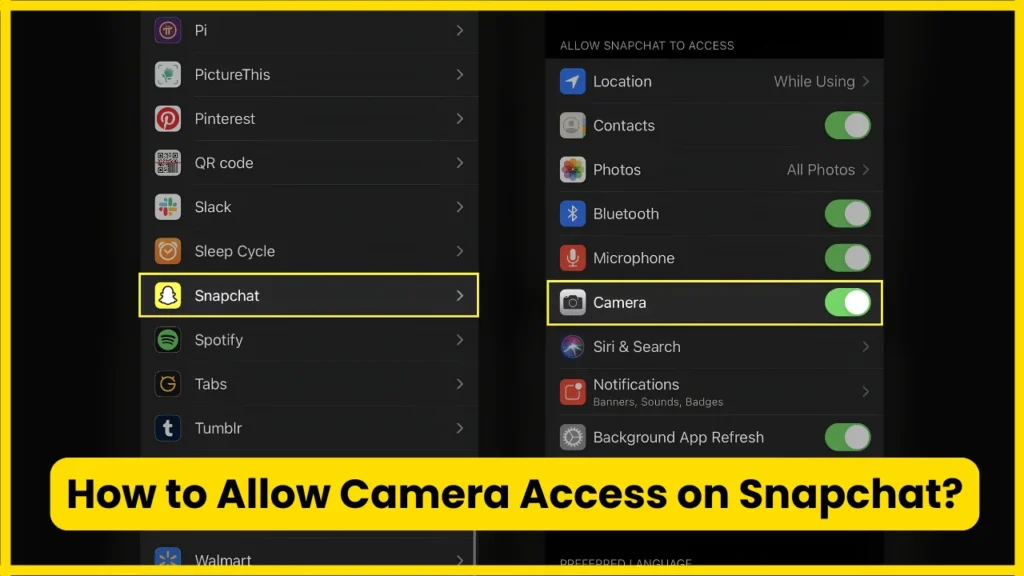
If Snapchat cannot open your camera, the most common reason is that camera permission is turned off at the phone level. The fix is usually simple: open your phone’s privacy or app-permission settings, find Snapchat, and allow camera access. On iPhone, this is managed under Settings > Privacy & Security > Camera. On Android, you can usually find it under Settings > Apps > Snapchat > Permissions > Camera.
Snapchat needs camera access to take photo and video Snaps, use video chat, scan Snapcodes, and access camera-based features. Snapchat also provides its own permissions screen where you can review what the app has requested.
How to Allow Camera Access on Snapchat?
The exact steps depend on whether you use an iPhone or Android phone. Choose your device below.
On iPhone
Follow these steps to give Snapchat permission to use your camera:
- Open Settings on your iPhone.
- Tap Privacy & Security.
- Tap Camera.
- Find Snapchat in the list of apps.
- Turn the Snapchat switch on.
- Open Snapchat again and check the camera.
Apple says apps must request permission before accessing the iPhone camera, and camera permissions can be reviewed or changed from Settings > Privacy & Security > Camera.
Quick path:
Settings → Privacy & Security → Camera → Snapchat → On
If Snapchat does not appear in the Camera list, it may not have requested camera access yet. Apple notes that an app does not appear in a permission list until it has requested access.
On Android
Android gives you control over individual app permissions. To enable the Snapchat camera:
- Open Settings.
- Tap Apps.
- Find and select Snapchat.
- Tap Permissions.
- Select Camera.
- Choose Allow or the available option that permits camera use while Snapchat is running.
- Reopen Snapchat.
Google’s current Android guidance uses Settings > Apps > [app] > Permissions to change permissions for an individual app. The available choices can vary by Android version and manufacturer.
Quick path:
Settings → Apps → Snapchat → Permissions → Camera → Allow
On some Android phones, menu names can differ because manufacturers such as Samsung, Xiaomi, OnePlus and others customize the Android interface. If you cannot find the exact menu, search your phone’s Settings for Snapchat, Camera permission, or App permissions.
Also Read: What Does Followers Mean on Snapchat?
How to Allow Camera Permission Directly in Snapchat?
You can also review Snapchat’s permission information from inside the app.
Open Snapchat and:
- Tap your Profile icon.
- Tap the Settings gear.
- Scroll to App & Privacy.
- Tap My Privacy & Data.
- Under App & Privacy, tap Permissions.
Snapchat lists Camera among its permissions and explains that camera access is used for taking Snaps, video chat, adding friends through Snapcodes and other camera features.
One important distinction: Snapchat can show you information about its permissions, but the operating system ultimately controls whether the app has access to your camera. If access has been denied at the device level, you generally need to change it in your iPhone or Android settings.
Why Does Snapchat Need Camera Access?
Camera permission is not just for taking ordinary photos.
According to Snapchat, camera access supports several features, including:
- Taking photo Snaps
- Recording video Snaps
- Video chat
- Scanning Snapcodes
- Camera-based Snapchat features
- Using Snapchat Lenses and other camera experiences
Snapchat’s support documentation specifically describes camera access as being used to take Snaps, video chat and add friends through Snapcodes.
Snapchat’s camera can also recognize QR codes and Snapcodes when they are visible in the camera view.
Also Read: How to See Who Screenshotted Your Public Snapchat Story?
Snapchat Camera Permission: iPhone vs. Android
| Task | iPhone | Android |
| Open app permissions | Settings > Privacy & Security | Settings > Apps > Snapchat > Permissions |
| Find camera permission | Camera | Camera |
| Enable Snapchat camera | Turn Snapchat on | Select Allow |
| Camera privacy controls | Controlled by iOS | Controlled by Android |
| Permission location | Device Settings | Device Settings |
| Menu names | Generally consistent | Can vary by manufacturer |
The underlying idea is the same on both platforms: Snapchat must have operating-system permission to access your camera.
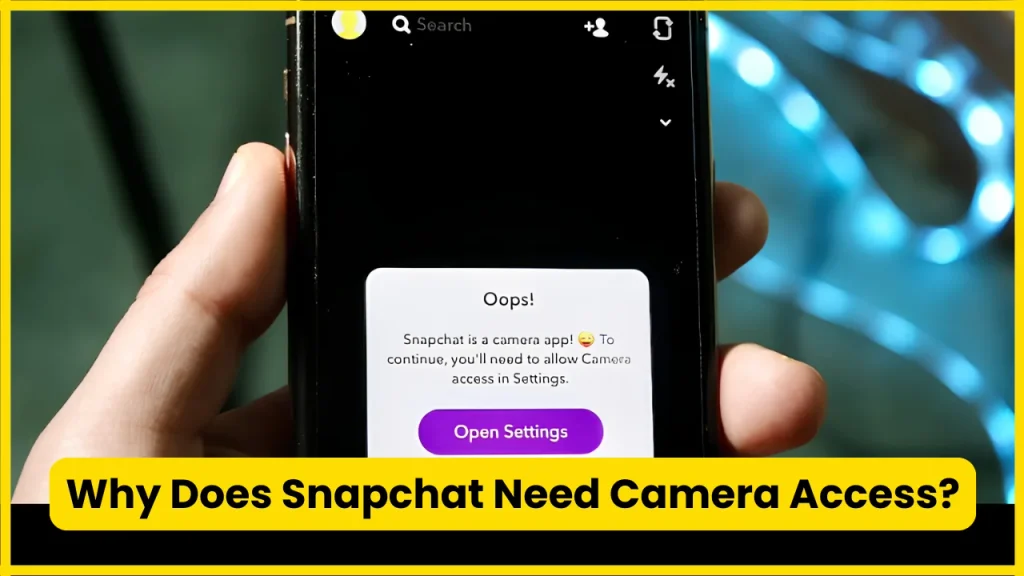
What If Snapchat Says “Camera Access Required”?
If Snapchat displays a message asking you to enable camera access, start by checking the device permission rather than repeatedly tapping the Snapchat prompt.
iPhone fix
Go to:
Settings → Privacy & Security → Camera → Snapchat
Make sure Snapchat is enabled. Then completely close Snapchat and open it again.
Apple confirms that camera access can be individually granted or revoked for apps from the Privacy & Security settings.
Android fix
Go to:
Settings → Apps → Snapchat → Permissions → Camera
Set the camera permission to an option that allows Snapchat to use the camera.
Google notes that Android allows users to change permissions for individual apps and specifically identifies Camera as a permission controlling an app’s ability to take pictures and record videos.
Also Read: How to Tell If Someone Has Snapchat Premium?
Snapchat Camera Permission Is On, But the Camera Still Does Not Work
Sometimes the permission itself is not the problem. If camera access is already enabled, work through these checks in order.
1. Restart Snapchat
Close Snapchat completely and reopen it.
A temporary app problem can prevent the camera interface from loading correctly even when the permission is enabled.
2. Restart your phone
Restarting the device can clear temporary camera or app processes that have become stuck.
3. Check whether another app can use the camera
Open your phone’s normal Camera app.
If the native camera also fails, the problem may not be specific to Snapchat. You may be dealing with a device-level camera issue.
If the normal Camera app works but Snapchat does not, focus on Snapchat’s permissions, app version and app data.
4. Check the system-wide camera control on Android
Some Android devices include a system-wide camera access control.
Google explains that on supported Android versions, you can use Quick Settings to turn camera or microphone access on or off. If camera access is disabled at the system level, an individual app may not be able to use the camera even when its own permission is configured correctly.
So check:
Quick Settings → Camera access
Make sure camera access has not been disabled.
5. Update Snapchat
An outdated Snapchat installation can cause compatibility problems.
Snapchat’s own camera troubleshooting guidance recommends making sure the app is updated through the iOS App Store or Google Play Store, then restarting the app and the device.
6. Check your internet connection
Snapchat recommends checking your internet connection when troubleshooting camera problems. Try switching between Wi-Fi and mobile data to see if the behavior changes.
Also Read: How to Delete Stickers on Snapchat
What If the Camera Permission Option Is Missing?
This is one of the more confusing situations.
If you cannot find Snapchat under the camera permissions list, try opening Snapchat and attempting to use the camera. The operating system may then prompt Snapchat to request camera access.
On iPhone, Apple explains that an app will not appear in a privacy permission list until it has requested access to that type of data.
On Android, open Snapchat’s app information page and look under Permissions. The exact wording can differ between Android versions and manufacturers.
What If You Accidentally Tapped “Don’t Allow”?
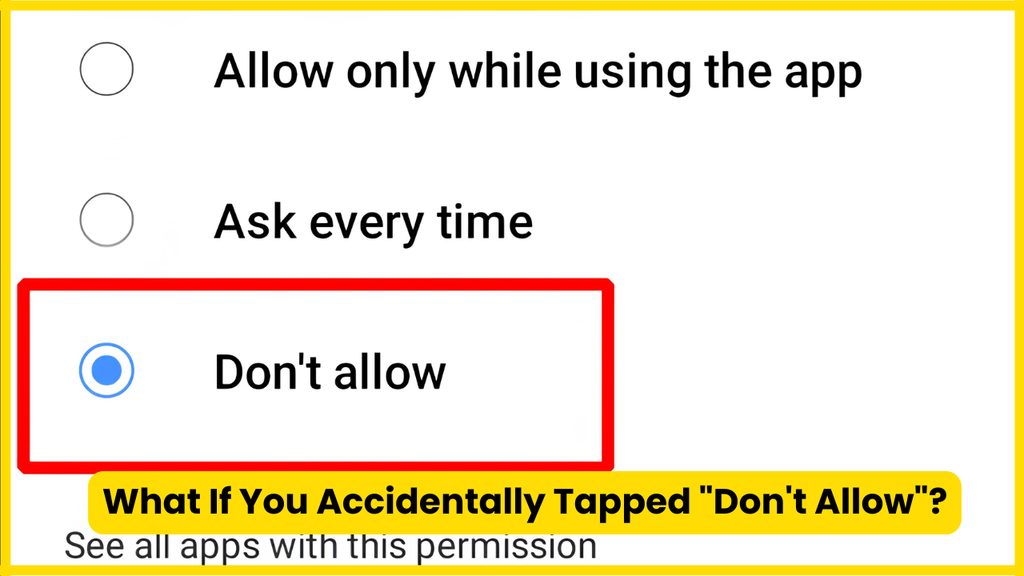
Don’t worry. You normally do not need to reinstall Snapchat simply because camera permission was denied.
On iPhone
Go to:
Settings → Privacy & Security → Camera → Snapchat
Then enable camera access.
On Android
Go to:
Settings → Apps → Snapchat → Permissions → Camera
Then select the appropriate allow option.
The important point is that denying permission is generally reversible through the operating system’s privacy settings. Both Apple and Google provide controls for changing app permissions after an initial decision.
Also Read: How to Unpin Someone on Snapchat
Do You Need to Allow Microphone Access Too?
If you only want to take silent photos, camera permission is the main permission involved.
However, Snapchat’s video and audio features can also require microphone access. Snapchat explains that microphone permission is used to record audio for Snaps and video chat.
If your video works but there is no sound, check:
iPhone:
Settings → Privacy & Security → Microphone → Snapchat
Android:
Settings → Apps → Snapchat → Permissions → Microphone
Camera and microphone permissions are separate, so enabling one does not automatically mean the other is enabled.
Does Allowing Camera Access Let Snapchat Use the Camera Anytime?
The operating system controls how an app can access protected hardware.
On iPhone, Apple states that apps must request permission to use the camera, and you can review or revoke that access from Privacy & Security settings. iPhone also displays a green indicator when an app is using the camera.
On supported Android versions, a green indicator can appear when an app is using the camera or microphone, and Android provides controls for checking and managing that access.
This makes camera permission different from simply installing Snapchat. Installing the app does not by itself mean the app has unrestricted access to the camera.
How to Check Snapchat Permissions for Privacy?
If you want to review more than just camera access, Snapchat has a permissions section inside its settings.
From Snapchat:
Profile → Settings → My Privacy & Data → Permissions
Snapchat lists permissions such as Camera, Microphone, Photos, Contacts and Location and explains how those permissions support different features.
You can also review permissions at the operating-system level.
On Android, the Privacy Dashboard can show which apps have accessed certain permissions and when they were used on supported versions.
On iPhone, Apple provides privacy controls under Settings → Privacy & Security, where you can review apps that have requested access to protected data and hardware features.
Also Read: Snapchat Moons
Snapchat Camera Access Troubleshooting Checklist
If Snapchat’s camera is still not working, use this checklist:
- Snapchat has camera permission
- System-wide camera access is enabled
- Snapchat is updated
- Snapchat has been completely closed and reopened
- Phone has been restarted
- Native Camera app works
- Microphone permission is enabled if recording video with sound
- Internet connection is working
- Snapchat is not being restricted by device-level privacy controls
This sequence helps separate a permission problem from an app problem and a device problem.
Common Snapchat Camera Problems and Solutions
| Problem | Likely area to check | First step |
| Snapchat asks for camera access | Camera permission | Enable Snapchat camera permission |
| Camera screen is black | Permission, app or device | Check permission and restart Snapchat |
| Camera permission is off | Phone settings | Enable Camera for Snapchat |
| Snapchat camera works but video has no sound | Microphone permission | Allow microphone access |
| Snapchat cannot scan a Snapcode | Camera access or app issue | Check camera permission |
| Snapchat camera stopped after an update | App compatibility | Update/restart Snapchat |
| Normal Camera app also fails | Device-level issue | Test phone camera and system settings |
| Camera permission is enabled but Snapchat still fails | App/system issue | Restart, update and recheck permissions |
Frequently Asked Questions
How do I allow camera access on Snapchat?
On iPhone, open Settings > Privacy & Security > Camera and enable Snapchat. On Android, open Settings > Apps > Snapchat > Permissions > Camera and choose an option that allows camera access.
Why can’t Snapchat access my camera?
Snapchat may not have camera permission, system-wide camera access may be disabled, or the app may be experiencing a temporary problem. Check the Snapchat camera permission first, then restart and update the app.
How do I turn on camera permission for Snapchat on iPhone?
Go to Settings > Privacy & Security > Camera, find Snapchat, and turn its camera access on. Apple provides this menu for reviewing and changing camera permissions.
How do I turn on camera permission for Snapchat on Android?
Go to Settings > Apps > Snapchat > Permissions > Camera, then select the available option that permits camera access. Android’s exact menu wording can vary by device and software version.
Why is Snapchat camera black even though permission is allowed?
A black camera screen can have several causes. Check the system-wide camera control, restart Snapchat, restart the phone, update Snapchat and test the phone’s normal Camera app. Snapchat’s support guidance also recommends checking the internet connection.
Do I need to allow microphone access on Snapchat?
You need microphone access for features that record audio, including audio in Snaps and video chat. Camera permission and microphone permission are separate.
Can I change Snapchat camera permission later?
Yes. Both iOS and Android provide controls for changing app permissions after they have been granted or denied.
Why is Snapchat not listed under Camera permissions on iPhone?
An iPhone app does not appear in a particular privacy permission list until it has requested that type of access. Try opening Snapchat and using its camera so the permission request can be triggered.
Does Snapchat need camera permission to scan a Snapcode?
Yes. Snapchat describes camera access as supporting Snapcode-related features, and its Camera can detect Snapcodes and QR codes.
What should I do if Snapchat camera permission is enabled but nothing works?
Check the system-wide camera control, restart the app and phone, update Snapchat, test the native Camera app and check the microphone permission if the problem involves video audio. If the native camera also fails, investigate the device rather than Snapchat alone.
Also Read: What Does the Green Dot Mean on Snapchat?
Conclusion
Allowing camera access on Snapchat usually takes less than a minute. On iPhone, check Settings > Privacy & Security > Camera; on Android, check Settings > Apps > Snapchat > Permissions > Camera. If permission is already enabled, restart and update Snapchat, check system-wide camera controls, and test the phone’s native Camera app to isolate the problem.

Tasha Harshman is a versatile writer who explores a range of topics with a special focus on entertainment. She enjoys sharing clear, engaging insights about movies, celebrities, trends, and pop culture.