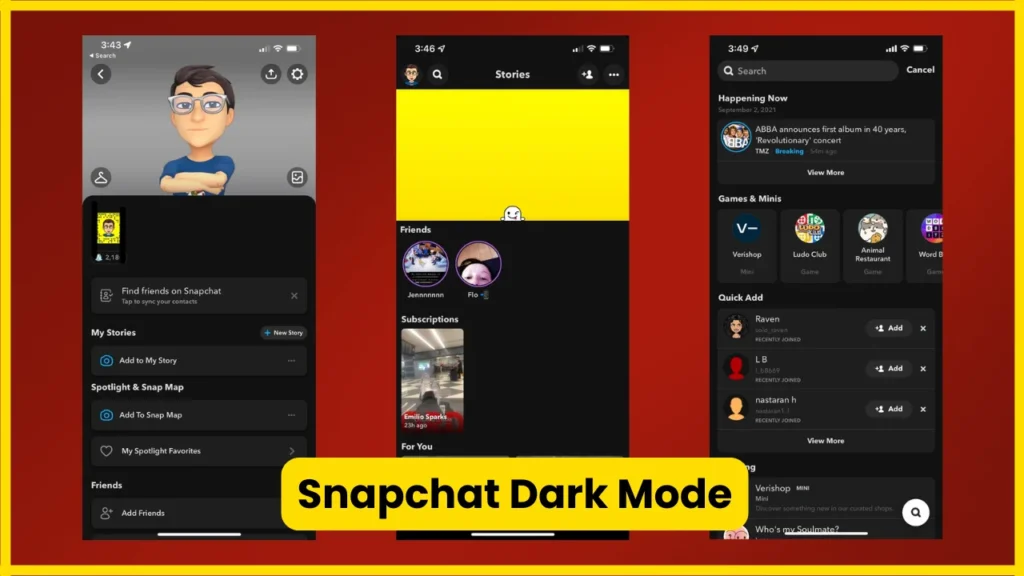
That bright Snapchat interface can feel surprisingly harsh when you’re checking messages, watching Stories, or scrolling Spotlight at night. Fortunately, Snapchat Dark Mode is now available through the app’s own appearance settings, so you don’t need a modified Snapchat app or a complicated workaround.
The important part is knowing where Snapchat has placed the setting. On current versions, open your profile, enter Settings, find App Appearance, choose the dark-theme option available on your device, and apply it. Snapchat’s official instructions currently describe System Dark on its support page, while other versions may display options such as Always Dark or Match System.
What Is Snapchat Dark Mode?
Snapchat Dark Mode changes the app’s interface from its traditional light appearance to a darker color scheme.
Instead of large areas of bright white, menus and other interface elements use darker tones. Your Snaps, Stories, videos, photos, and other media aren’t simply turned into black-and-white content. The feature primarily changes Snapchat’s user interface.
The setting is useful if you:
- Use Snapchat in bed or in dim rooms
- Find bright interfaces uncomfortable at night
- Prefer dark themes across your apps
- Want Snapchat to follow your phone’s system appearance
- Already use Dark Mode throughout iOS or Android
Apple describes system-wide Dark Mode as being designed for a better viewing experience in low-light environments.
Does Snapchat Have Dark Mode in 2026?
Yes. Snapchat currently supports Dark Mode on both iPhone and Android.
This is an important update because older guides often say that Android users either didn’t have Snapchat Dark Mode or needed workarounds. Those articles can now be misleading.
Snapchat’s current support documentation specifically provides instructions for enabling Dark Mode on Android or iOS through App Appearance.
However, you may see slightly different labels depending on your Snapchat version, account, device, or rollout.
Common labels include:
- System Dark
- Always Dark
- Match System
- System Light
- Always Light
So don’t panic if your screen doesn’t use exactly the same wording as an older tutorial.
Also Read: Snapchat Planets in Order
How to Turn On Snapchat Dark Mode
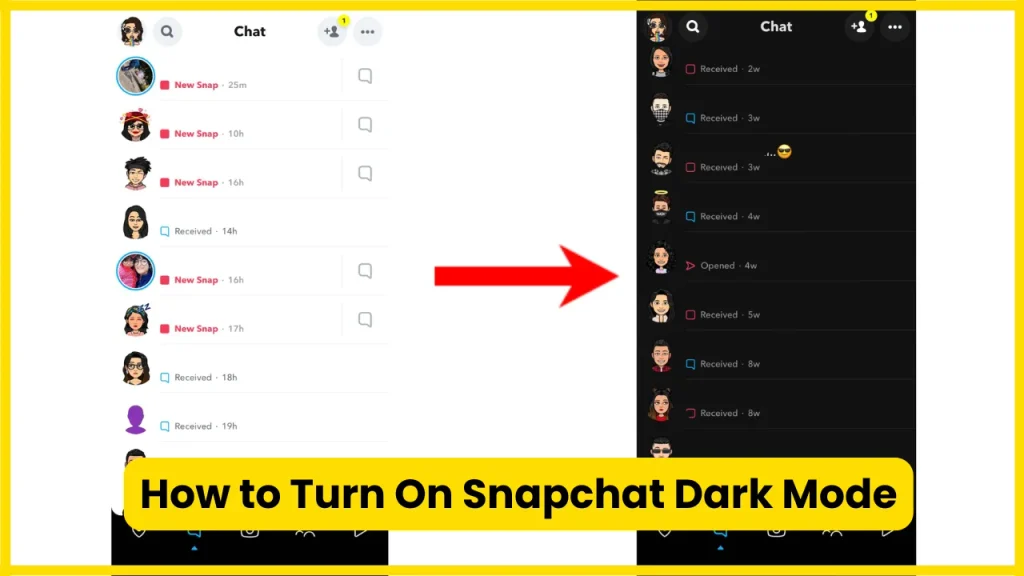
The basic process is straightforward.
Step 1: Open Snapchat
Launch the Snapchat app on your iPhone or Android phone.
Step 2: Open Your Profile
Tap your Bitmoji or profile picture in the upper-left corner.
This takes you to your profile page.
Step 3: Open Settings
Tap the gear icon in the upper-right corner.
You’ll now see Snapchat’s Settings screen.
Step 4: Find App Appearance
Look for App Appearance.
Depending on the current Snapchat interface, it may appear under your account settings or within the Settings shortcuts.
Snapchat’s official support instructions currently direct users to App Appearance from Settings.
Step 5: Choose the Dark Theme
Select the dark option available to you.
On current Snapchat versions, this can appear as System Dark. Some versions and guides use Always Dark instead.
Step 6: Apply the Theme
If Snapchat shows an Apply Theme button, tap it.
Your Snapchat interface should switch to the darker appearance.
Official Snapchat Dark Mode instructions
Snapchat Dark Mode on iPhone
If you’re using an iPhone, Snapchat gives you more than one way to handle the appearance.
Depending on your current app version, you may see options such as Always Dark, Always Light, or Match System.
Use Always Dark
Choose Always Dark if you want Snapchat to remain dark regardless of your iPhone’s system appearance.
This is the simplest choice for people who prefer a dark Snapchat interface all the time.
Use Match System
Choose Match System if you want Snapchat to follow your iPhone’s appearance setting.
For example, your iPhone can use Light Mode during the day and automatically switch to Dark Mode later. Snapchat can follow that system preference when the matching option is available.
Apple currently lets iPhone users control system Dark Mode through Settings > Display & Brightness, and automatic scheduling is also available.
A useful distinction
Your iPhone being in Dark Mode does not necessarily mean every app will automatically become dark.
Apps can have their own appearance controls. That’s why checking Snapchat’s App Appearance settings is worthwhile.
Also Read: Snapchat Planets Numbered
Snapchat Dark Mode on Android
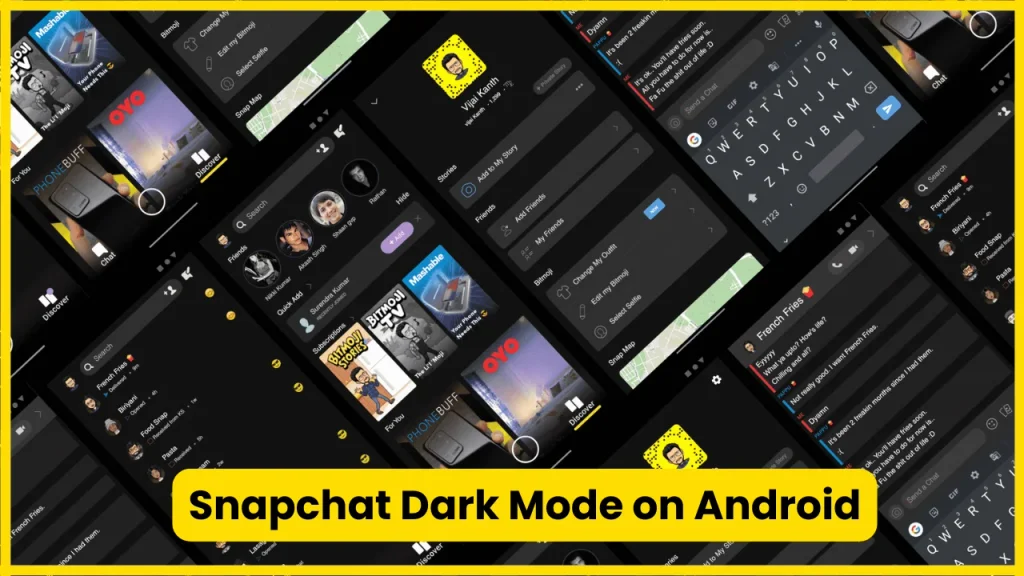
Android users can now use Snapchat’s native appearance controls rather than relying on the old hacks that appeared in many older tutorials.
Open:
Snapchat → Profile → Settings → App Appearance → Dark option → Apply Theme
Snapchat’s official support page explicitly lists Android alongside iOS for its Dark Mode instructions.
Your Android phone’s own Dark Theme can also affect supported applications. Google notes that Android’s Dark theme works with supported apps, although individual apps can have their own theme controls.
What if Android Dark Mode doesn’t change Snapchat?
Don’t assume something is broken.
There are two separate settings to consider:
- Android’s system Dark Theme
- Snapchat’s own App Appearance setting
If Snapchat has its own theme control, that app-level setting can determine how Snapchat looks.
Google also notes that app behavior varies because not every app offers the same theme options.
Snapchat Dark Mode Settings Explained
The names can be confusing, particularly when you’re following an older tutorial.
| Snapchat option | What it generally does |
| System Dark | Uses Snapchat’s dark appearance |
| Always Dark | Keeps Snapchat dark |
| Match System | Follows your phone’s light/dark setting |
| System Light | Uses the light appearance |
| Always Light | Keeps Snapchat light |
The exact labels aren’t guaranteed to remain identical across Snapchat releases. Snapchat’s current support documentation uses System Dark and System Light in one version of its instructions, while its broader support documentation refers to Always Dark and Always Light.
That distinction explains why screenshots from different years can appear to contradict each other.
Also Read: Snapchat Planets Order
What to Do If App Appearance Is Missing?
This is one of the most common Snapchat Dark Mode problems.
If you can’t find App Appearance, work through these checks.
Update Snapchat
Open your device’s app store and check whether Snapchat has an available update.
An outdated app can have a different Settings layout from current versions.
Restart Snapchat
Completely close Snapchat and open it again.
This sounds basic, but it can clear a temporary interface or settings-loading problem.
Restart Your Phone
If the setting still doesn’t appear, restart your iPhone or Android device.
Then check:
Profile → Settings → App Appearance
Check Your Snapchat Account
Don’t rely entirely on an old screenshot showing exactly where the option should be.
Snapchat changes its interface regularly, and Settings can move as the app evolves.
Don’t Install a Modified Snapchat App
You don’t need a third-party Snapchat client just to get Dark Mode.
The official Snapchat app now provides an appearance setting for both major mobile platforms.
Modified clients can also create unnecessary account, privacy, and security risks.
Why Is Snapchat Dark Mode Not Working?
If you selected a dark theme but Snapchat still looks light, check these possibilities.
The Theme Wasn’t Applied
Some versions require you to tap Apply Theme after choosing the appearance.
If you simply select an option and leave the screen, the change may not be committed.
You’re Using Match System
If you’ve selected Match System, Snapchat is expected to follow your phone’s appearance.
If your phone is currently using Light Mode, Snapchat may remain light.
Your Snapchat Version Uses Different Labels
An older guide may tell you to choose Always Dark, while your current app says System Dark.
Don’t assume the feature is missing simply because the wording differs.
Snapchat Hasn’t Refreshed Correctly
Close the app completely and reopen it.
If that doesn’t help, update Snapchat and restart the phone.
Android’s System Theme Is Different
Android itself has a Dark Theme under its display settings, but Google explains that app support varies. An app can have its own appearance setting, too.
Also Read: Best Friend List Snapchat Planets
Does Snapchat Dark Mode Save Battery?
It can, but don’t expect a dramatic battery boost from Snapchat alone.
The effect depends heavily on your phone’s display technology, brightness, usage pattern, and how the app renders its interface.
Google specifically says Dark theme can save battery on some screens and recommends it among settings that may reduce battery consumption.
The practical distinction is important:
- OLED and AMOLED displays can benefit more from darker pixels.
- LCD displays generally don’t get the same pixel-level benefit.
- Watching bright videos still consumes energy.
- Screen brightness often has a much larger effect on battery life.
- Spending less time with the display on can matter more than the theme itself.
So Snapchat Dark Mode is primarily an interface and viewing preference, not a guaranteed battery-saving trick.
Is Snapchat Dark Mode Better for Your Eyes?
It can feel more comfortable in low-light conditions, but Dark Mode isn’t a universal treatment for eye strain.
Apple describes Dark Mode as being designed to make screens easier to use in low-light environments. Apple also recommends managing brightness and provides features such as Night Shift and True Tone for display comfort.
Your experience depends on the environment.
If you’re using Snapchat in a dark bedroom, a bright white interface can feel unnecessarily intense. Switching to a darker interface and lowering brightness may feel much more comfortable.
But there’s another factor people often overlook:
Brightness matters.
A dark interface displayed at extremely high brightness can still be uncomfortable.
For nighttime Snapchat use, consider:
- Dark Mode
- Lower screen brightness
- Auto-brightness
- Night Shift on compatible Apple devices
- Night Light on supported Android devices
- Taking regular breaks from prolonged screen use
Dark Mode is therefore best viewed as one part of a comfortable display setup.
Dark Mode vs Light Mode on Snapchat
Neither theme is universally better.
The right choice depends on where and how you use Snapchat.
| Factor | Dark Mode | Light Mode |
| Nighttime use | Usually more comfortable | Can feel very bright |
| Bright outdoor conditions | May be harder to read | Often easier to see |
| Low-light rooms | Good fit | Can feel harsh |
| Personal preference | Dark aesthetic | Traditional Snapchat look |
| Battery | May help on some displays | Usually higher display output |
| Automatic switching | Available through matching options where supported | Available through matching options where supported |
If you frequently switch between indoor and outdoor environments, Match System can be more convenient than permanently choosing one theme.
Does Dark Mode Change Snapchat Stories and Snaps?
Not in the way many people expect.
Dark Mode changes the Snapchat interface, not the original photos and videos that people post.
Your Stories can still contain bright photographs, white backgrounds, colorful graphics, and videos with their original appearance.
This is why Dark Mode should be thought of as an app interface theme, rather than a filter applied to all Snapchat content.
Also Read: Snapchat Planets Meaning
Does Snapchat Dark Mode Require Snapchat+?
No. You don’t need Snapchat+ simply to use Snapchat’s standard Dark Mode.
Snapchat+ does offer additional customization features, including custom app themes. Snapchat’s support documentation says Snapchat+ subscribers can access Custom App Themes, although availability can roll out gradually.
That’s different from simply enabling the standard dark appearance.
Think of the two features like this:
| Feature | Standard Snapchat | Snapchat+ |
| Basic Dark Mode | ✓ | ✓ |
| App Appearance controls | ✓ | ✓ |
| Custom app themes | Limited | ✓ |
| Additional Snapchat+ customization | No | ✓ |
If your only goal is to make Snapchat darker, you shouldn’t need Snapchat+ for that basic function.
Can You Automatically Turn Snapchat Dark at Night?
Yes, when your Snapchat version provides a system-matching option.
The idea is simple:
Phone switches to Dark Mode → Snapchat follows the system theme.
On iPhone, Apple provides automatic Dark Mode scheduling through Settings → Display & Brightness → Automatic → Options.
Android also supports scheduled or system-controlled dark themes on supported devices and versions.
If Snapchat offers Match System in your App Appearance menu, this is usually the most convenient setup for people who don’t want to manually change the theme every evening.
A Better Snapchat Nighttime Setup
Dark Mode is only one part of a good nighttime setup.
Try this combination:
- Turn on Snapchat Dark Mode.
- Reduce screen brightness.
- Enable automatic brightness if it behaves well on your phone.
- Use iPhone Night Shift or Android Night Light if you prefer warmer colors.
- Avoid using maximum brightness in a completely dark room.
- Give your eyes regular breaks during long sessions.
Apple specifically recommends automatic brightness or reduced brightness when trying to conserve battery and also provides Night Shift and True Tone display controls.
Snapchat Dark Mode: Common Problems and Fixes
| Problem | What to try |
| App Appearance is missing | Update Snapchat and reopen it |
| Dark Mode doesn’t apply | Select the dark option and tap Apply Theme |
| Snapchat stays light | Check whether Match System is following a light phone theme |
| Android phone is dark but Snapchat is light | Check Snapchat’s own App Appearance settings |
| Dark Mode suddenly changed | Check your phone’s system theme and Snapchat settings |
| Old tutorial doesn’t match | Look for updated labels such as System Dark |
| You’re considering a third-party APK | Use the official Snapchat app instead |
Also Read: What Do the Snapchat Planets Mean?
Should You Use Snapchat Dark Mode?
For most people who regularly use Snapchat at night, yes.
There’s little downside to trying it, and you can switch back whenever you want.
Dark Mode is particularly useful if:
- You dislike bright white interfaces.
- You use Snapchat late at night.
- Your other apps already use dark themes.
- You prefer a darker visual style.
- You want Snapchat to follow your device’s system appearance.
If you spend most of your Snapchat time outdoors in strong daylight, Light Mode may remain easier to read.
The best choice isn’t about following a trend. It’s about matching the interface to your environment.
Frequently Asked Questions
How do I turn on Dark Mode on Snapchat?
Open Snapchat, tap your profile, select the gear icon, open App Appearance, choose the available dark-theme option, and tap Apply Theme if required. Snapchat’s current official instructions support the feature on both Android and iOS.
Does Snapchat have Dark Mode on Android?
Yes. Snapchat’s current support documentation provides a Dark Mode setup for Android as well as iOS.
Why can’t I find App Appearance on Snapchat?
First update Snapchat to the latest available version, then restart the app. If the menu is still missing, the interface or feature availability on your account may differ from the version shown in an older tutorial.
Is Snapchat Dark Mode free?
Yes. Standard Snapchat Dark Mode is available through Snapchat’s normal appearance settings. Snapchat+ has separate custom theme features.
What is the difference between System Dark and Always Dark on Snapchat?
System Dark generally refers to using Snapchat’s dark appearance, while Always Dark indicates that the app should remain dark regardless of the phone’s system theme. The exact labels can differ between Snapchat versions.
Can Snapchat follow my phone’s Dark Mode?
If your Snapchat version provides Match System, you can use it to have Snapchat follow the device’s appearance setting.
Does Snapchat Dark Mode save battery?
It can reduce power consumption on some displays, particularly under conditions where dark pixels require less power. Google confirms that Dark theme can save battery on some screens, but the effect varies by device and display technology.
Does Dark Mode reduce eye strain?
It may make Snapchat more comfortable in low-light environments, but it doesn’t automatically prevent eye strain. Brightness, viewing conditions, and how long you use the screen also matter. Apple specifically positions Dark Mode as useful for low-light viewing.
Do I need Snapchat+ for Dark Mode?
No. Standard Dark Mode is separate from Snapchat+’s custom app themes.
Can I turn Snapchat Dark Mode off?
Yes. Return to Settings → App Appearance and choose the light option available in your version, such as System Light or Always Light, then apply the theme if prompted.
Also Read: How Much Is Snapchat Plus?
Conclusion
Snapchat Dark Mode is now simple to enable on both iPhone and Android. Open your profile, enter Settings, find App Appearance, select the appropriate dark option, and apply it. If the labels look different from an older guide, that’s usually a version difference rather than a missing feature. For nighttime use, combine Dark Mode with sensible brightness settings for a more comfortable experience.

Tasha Harshman is a versatile writer who explores a range of topics with a special focus on entertainment. She enjoys sharing clear, engaging insights about movies, celebrities, trends, and pop culture.